
How it works
From shared drive to submittal, with a check at every step.
MinerSOQ is a pipeline, not a chat box. Documents come in, get classified, become searchable, and feed a generator that is only allowed to say what the archive can back up. Here is each step and what it guarantees.
Step one
Connect the archive.
Point MinerSOQ at the shared drive where the firm’s work already lives — or connect SharePoint or OneDrive and let it keep itself in sync. Files are read as they are; nothing is moved or rewritten.
- SharePoint and OneDrive — connected once, kept current by change tracking
- Desktop upload — for a drive that isn’t in the cloud yet
- Never read — folders named HR, Personal or Private are skipped by rule
As it arrives
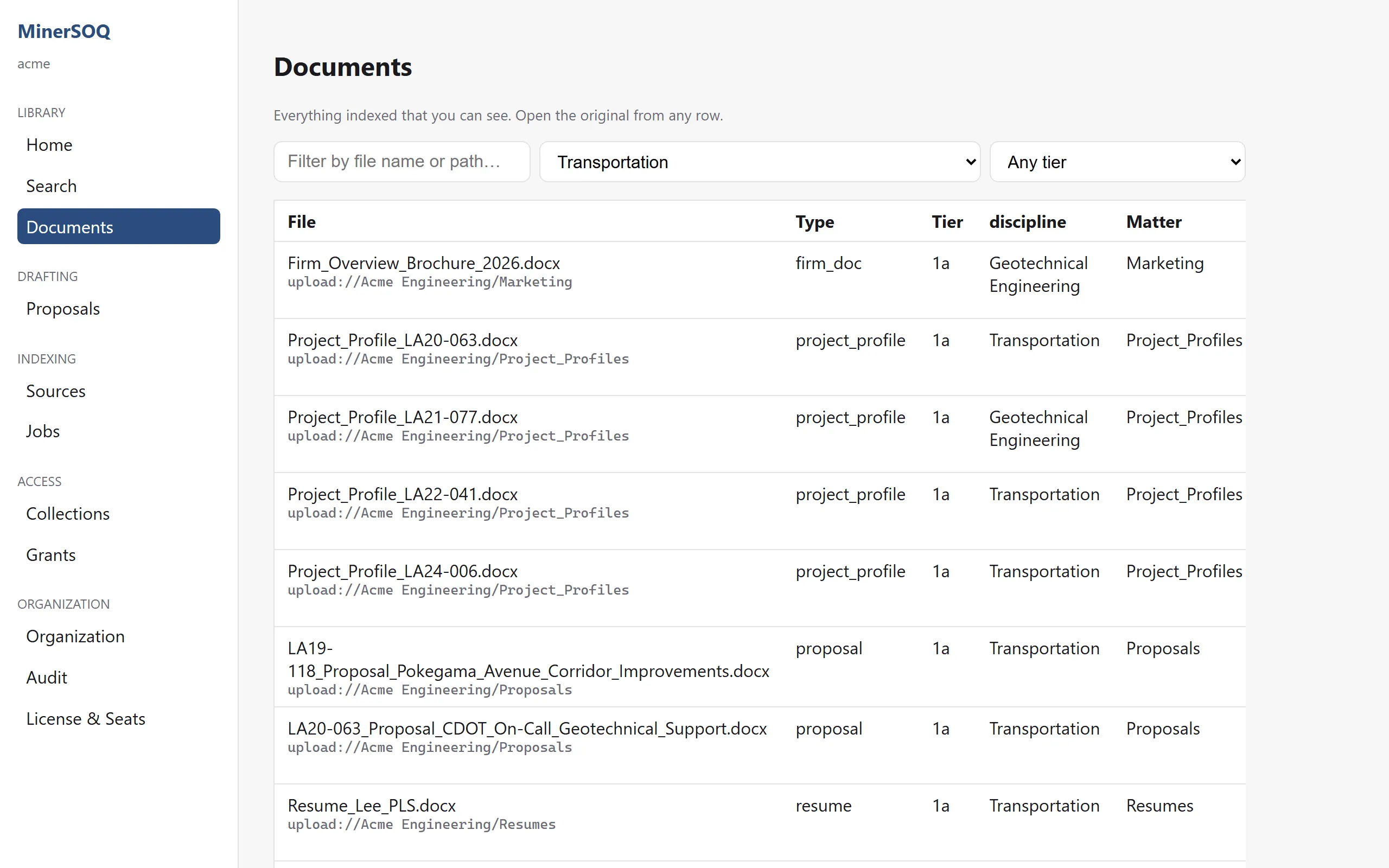
Classified on the way in.
Each file is typed by what it is, not where it was saved. The firm’s own SOQs and project sheets are ranked as first-hand work product; a client’s RFP is kept as context, never used as evidence about your firm.
- SOQ
- RFQ
- RFP
- proposal
- project profile
- resume
- fee estimate
- transmittal
- geotech report
- boring log
- lab data
- Phase I ESA
- insurance certificate
- contract
- firm document
Step two
Search by discipline.
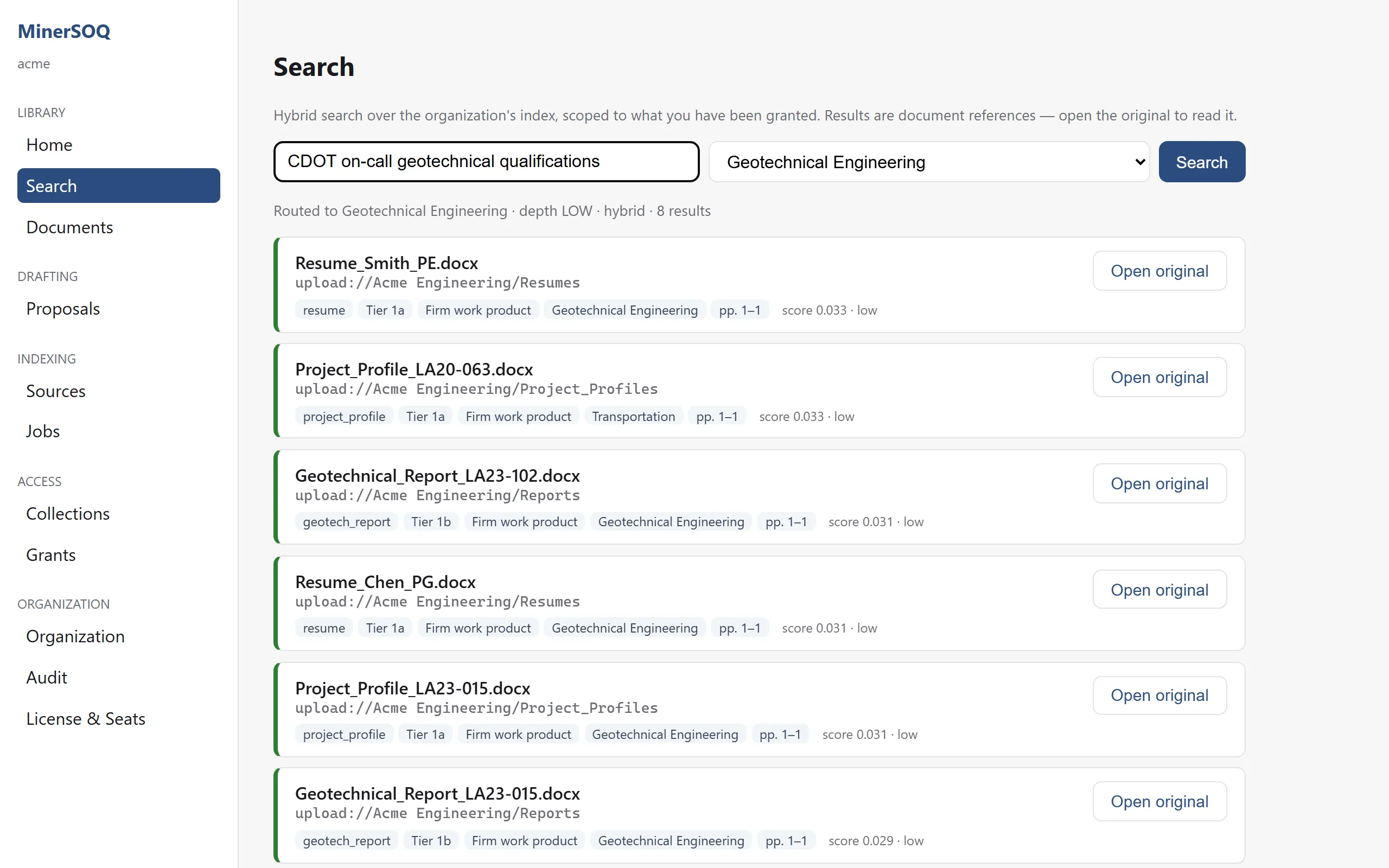
Ask the way you would ask a colleague — “on-call geotechnical qualifications for a state DOT” — and the query is routed to the discipline it belongs to before the archive is searched. Results are document references: the file, its type, its discipline, the pages that matched. Your team opens the document; the browser never holds passage text.
Disciplines
Routing that matches how the firm is organised.
- Geotechnical Engineering
- Environmental Services
- Water / Wastewater
- Transportation
- Construction Management / Program Management
- General Civil Engineering
Disciplines, document types and the firm’s own project-number convention are configuration, tuned to your firm during the pilot.
Step three
Pick the pursuit.
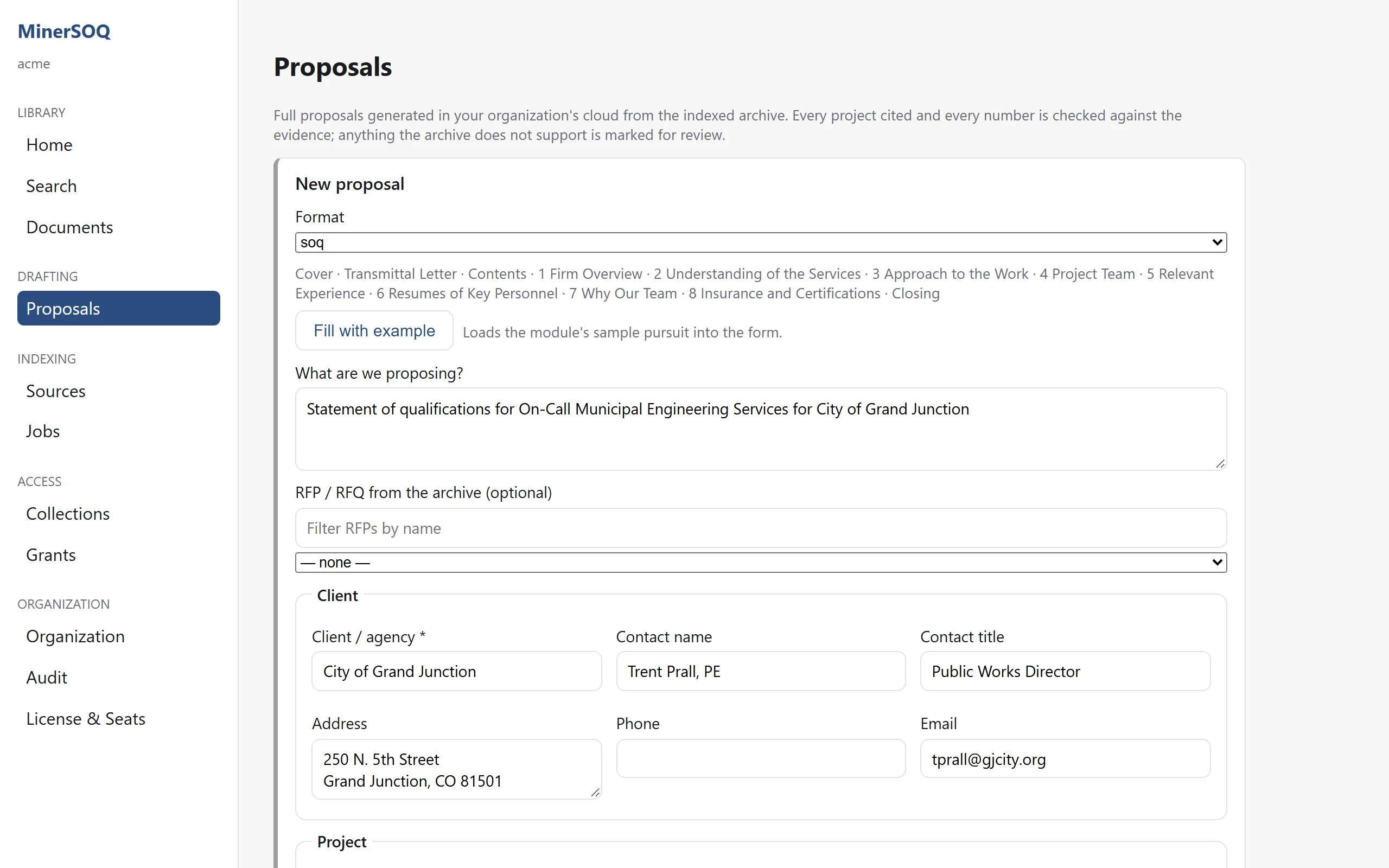
Choose a format — letter proposal, SOQ, RFP response or scope-and-fee exhibit — and pick the RFQ or RFP straight from the archive. The submittal list inside it becomes the outline. Then fill in what only you know: the client, the team, the reference projects, the tasks.
- The RFQ drives the outline — sections are reordered and renamed to mirror the request
- Fill with example — a worked example for each format, so the first run takes minutes to set up
- Inputs stay inputs — what you type is what the fee table and the team table are built from
Step four
Generate, then review.
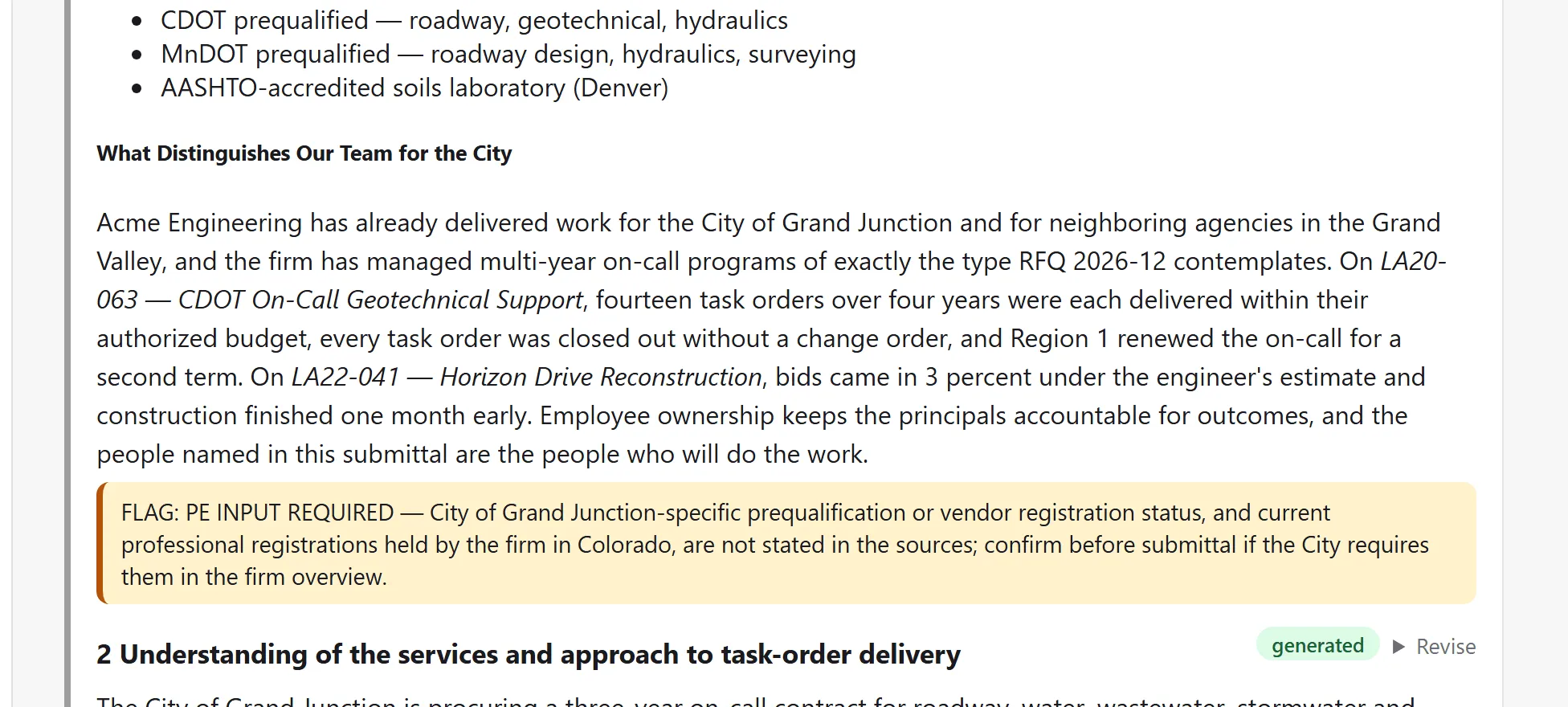
Generation runs as a job in your cloud. Sections appear as they finish, each one already checked: references verified against the evidence, numbers verified against the inputs and the firm profile, gaps flagged for a PE. A section either has enough evidence or it doesn’t — there is no third path where plausible text slips through.
- Revise one section — the rest of the document and its audit stay untouched
- Verify audit — replay the evidence chain against the index whenever you like
- Review markers — unsupported references and flags stay visible until an engineer resolves them
Step five
Download the DOCX.
The finished draft is a Word document your proposal team can work in: a draft banner in the header, a table of contents, team and insurance tables built from the firm profile, and every review marker highlighted so nothing unresolved can ship by accident.
And next time
The archive gets better at this.
The submittal you just sent is indexed like everything else. The next pursuit in that discipline starts from it — the pairing of an RFQ with the SOQ that answered it is part of what the index keeps.
See the whole pipeline on your own archive
A pilot runs against a copy of your real shared drive, in your own cloud tenancy. Bring an RFQ you have already answered and compare.